

Welcome
A store locator for Shopify: every store, stockist or dealer on a map, with search, Near me, opening hours and directions. No Google key and no map bill.
Getting started
- Install the app. Open Locora from Apps in your Shopify admin. It opens on the Dashboard.
- Add your locations. In Locations, import a spreadsheet (CSV), import your Shopify locations in one click, or add stores one by one. Every address is placed on the map for you.
- Make it yours. In Design pick your colour, map style, list position and texts. The preview shows desktop and phone as you change them.
- Link to it. Your locator is live at /apps/stores on your own domain. Add “Find a store” to your main menu or footer, or add the Store locator block to any page.
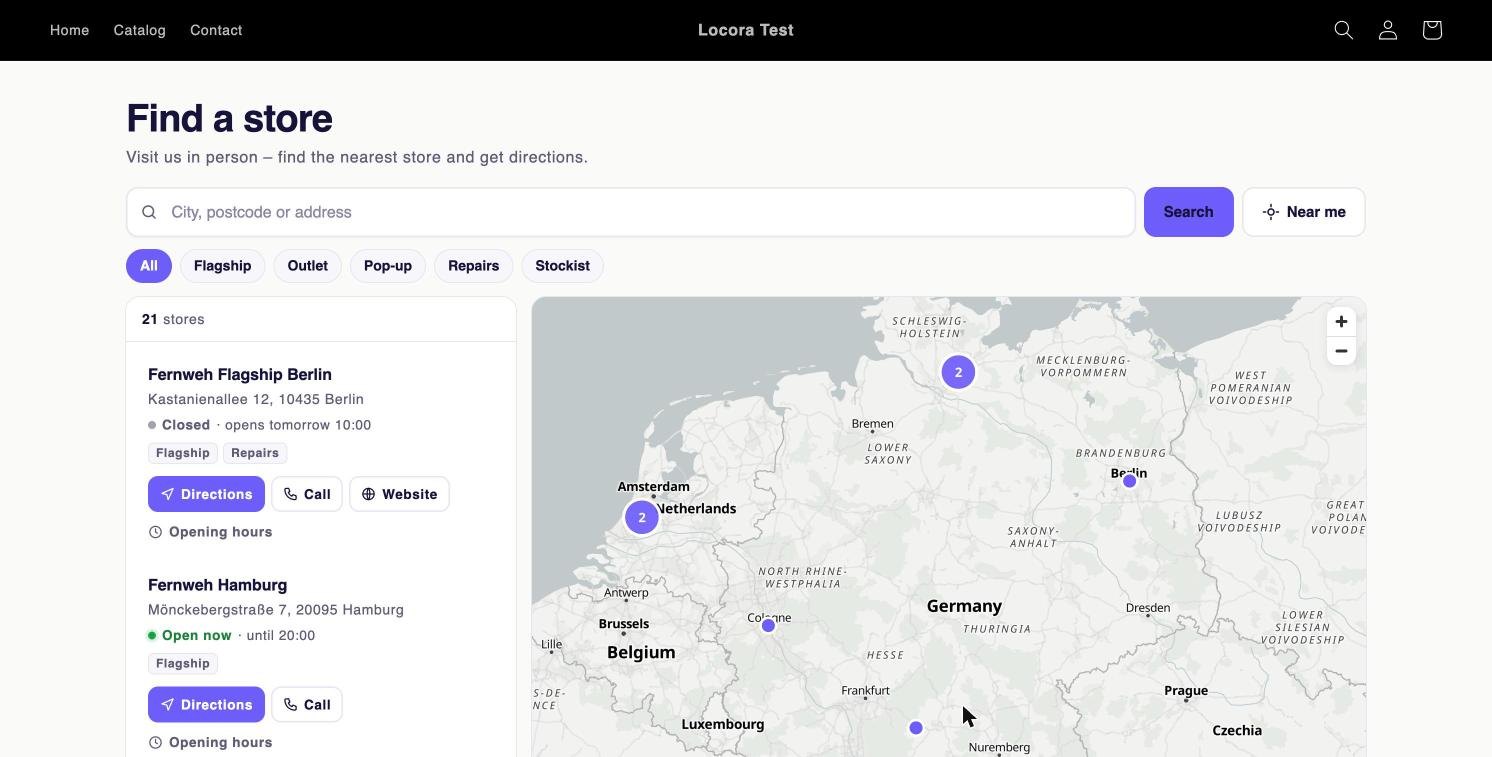
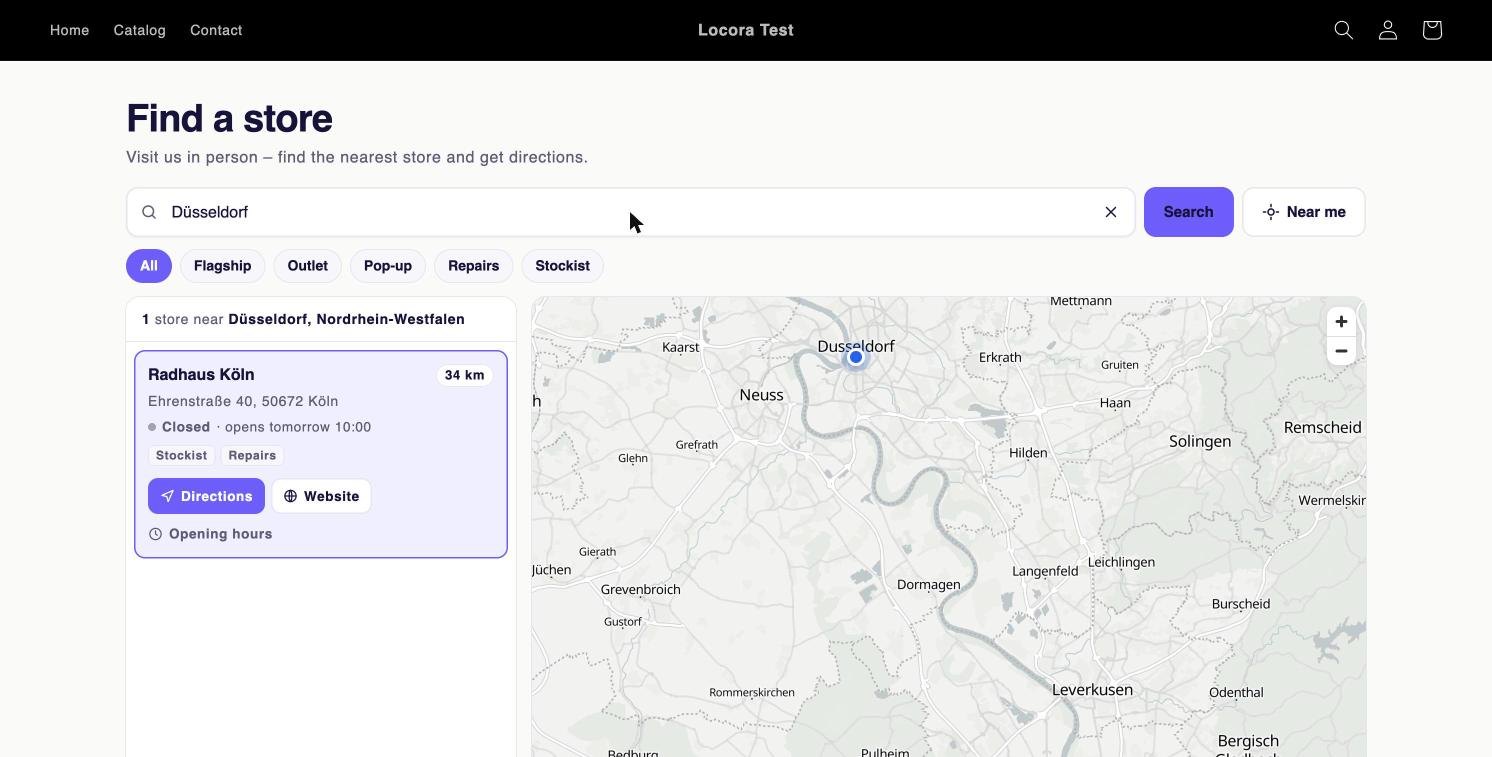
- Check it in your store. Search for a town or postcode, or tap Near me. The nearest stores come first, with distance, opening hours and directions.
Adding locations
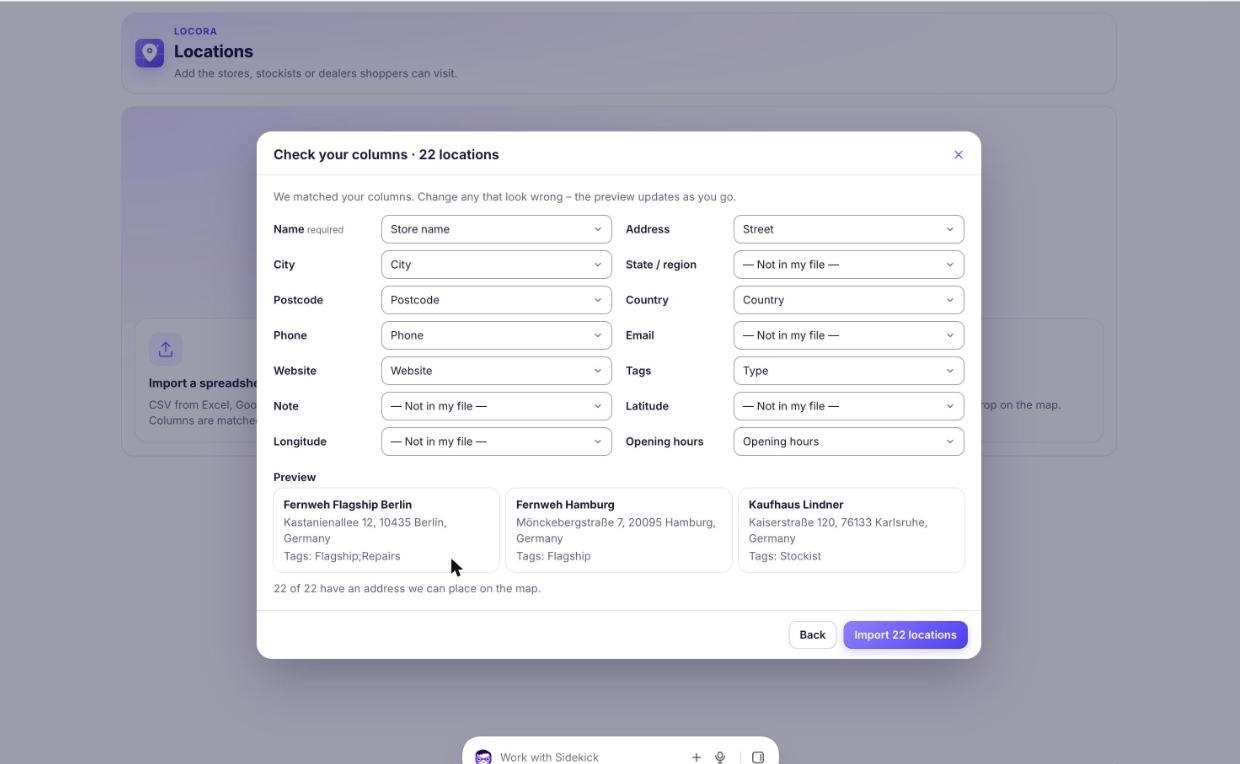
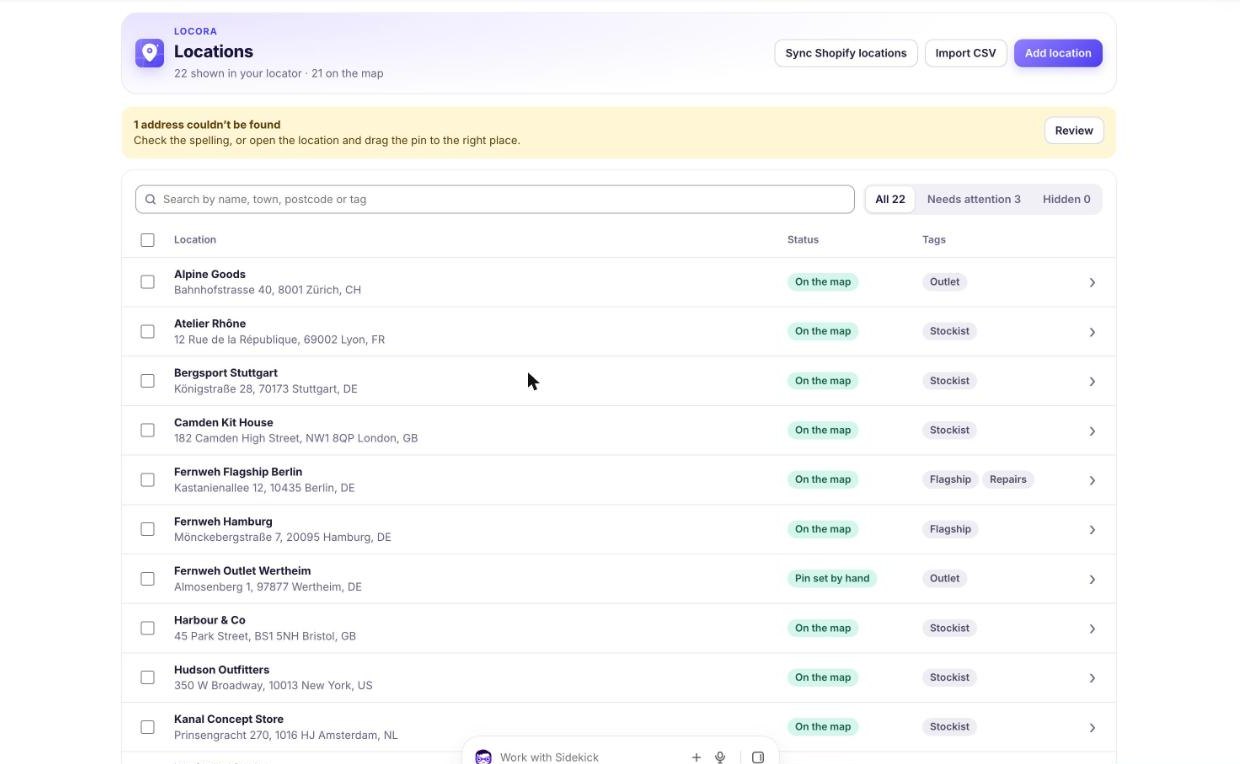
Import a spreadsheet: in Locations click Import and choose a CSV file, or paste rows from Excel or Google Sheets. Locora matches the columns (name, address, city, postcode, country, phone, website, tags, hours) and shows each match so you can change it.
Import Shopify locations: one click brings in your store’s active Shopify locations with their addresses.
Add one by one: click Add location, type the address and Locora finds it on the map.
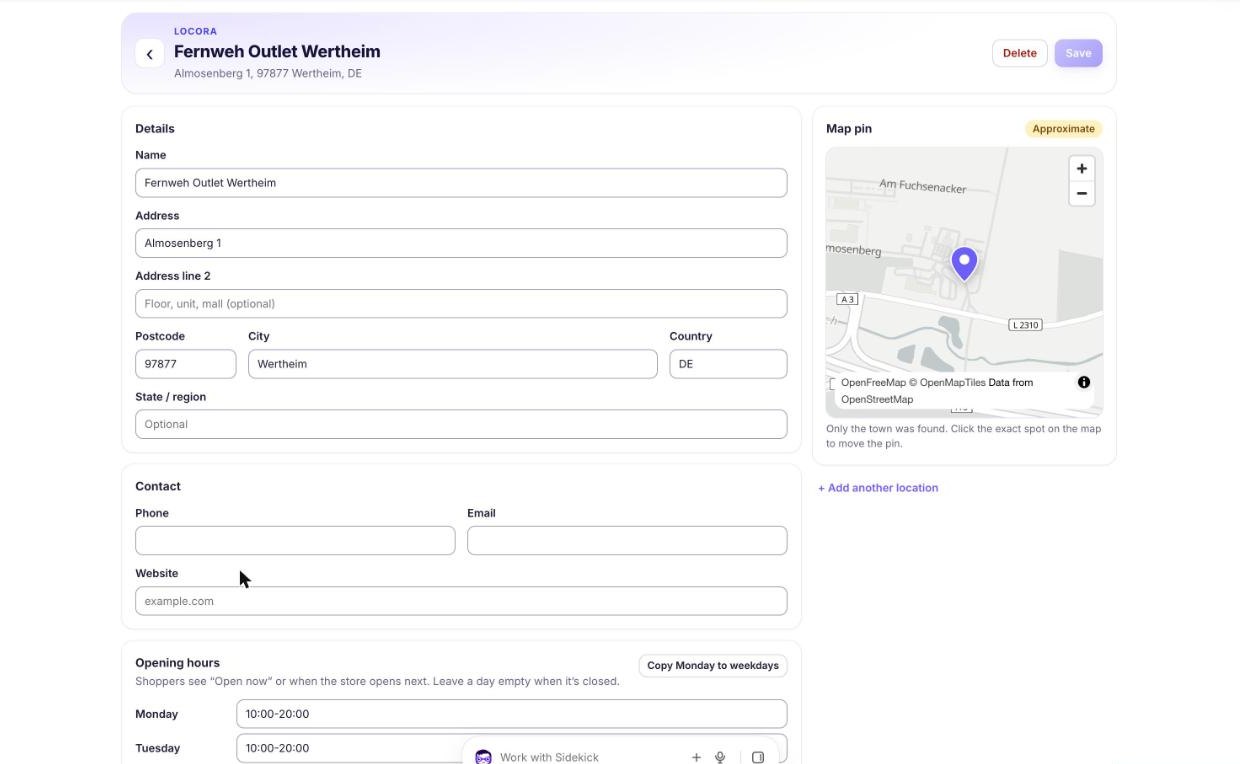
Every address is placed on the map for you. Rows that can’t be found are flagged as “Needs a pin” so you can fix them.
Fixing a pin
Open a location and drag its pin to the exact spot, for example the shop entrance. Save, and the new position is used everywhere.
You can also type latitude and longitude in the location, or include them as columns in your CSV.
Opening hours
Add hours per day, with one or more ranges (for example 9–13 and 14–18). Leave a day empty for closed.
Shoppers see a live badge such as “Open now · until 18:00” or “Opens tomorrow 10:00”, worked out for your store’s time.
In a CSV, a cell like “Mon-Fri 9-18; Sat 10-14” fills in the whole week.
Tags and filters
Give locations tags such as Stockist, Outlet, Flagship or Repairs. Shoppers can filter the locator by tag.
Turn filters off in Design if you don’t need them.
Design
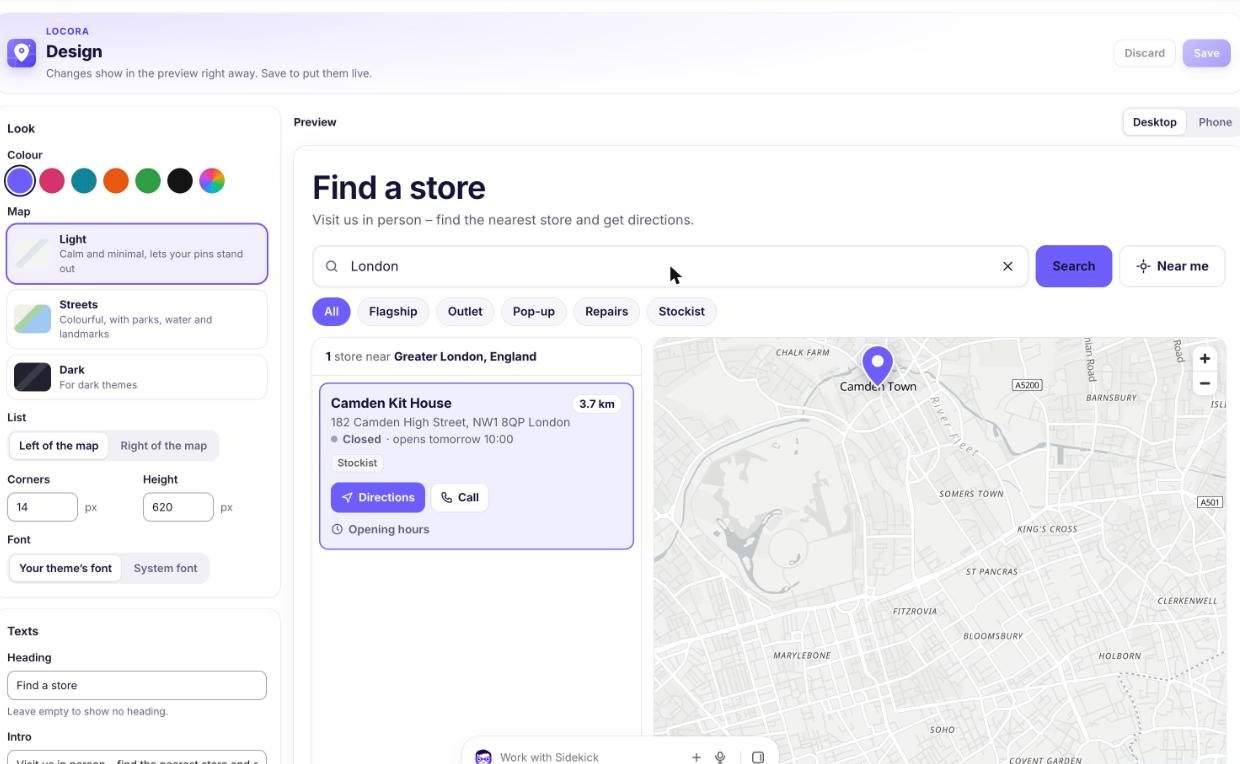
Pick your brand colour, a map style (Light, Streets or Dark), the list on the left or right, km or miles, the search radius, and the texts.
Use your theme’s font or the system font, and round the corners to match your theme. The preview shows desktop and phone as you change them.
Your locator page
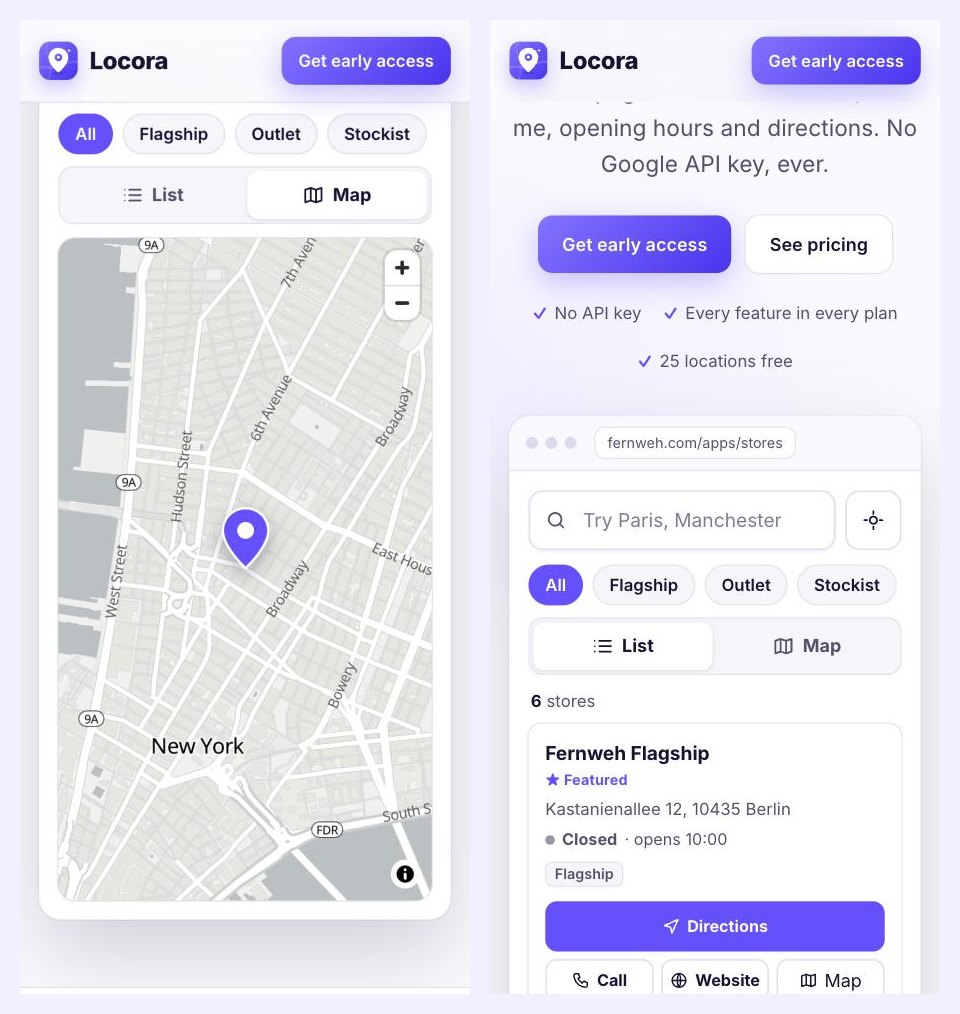
The locator is live at yourstore.com/apps/stores, inside your theme with your header and footer. Add it to your main menu or footer as “Find a store”.
To show the locator on another page, such as Contact or About, add the Store locator block in the theme editor.
On phones the locator switches to List and Map tabs, and Directions opens the phone’s map app.
What shoppers search
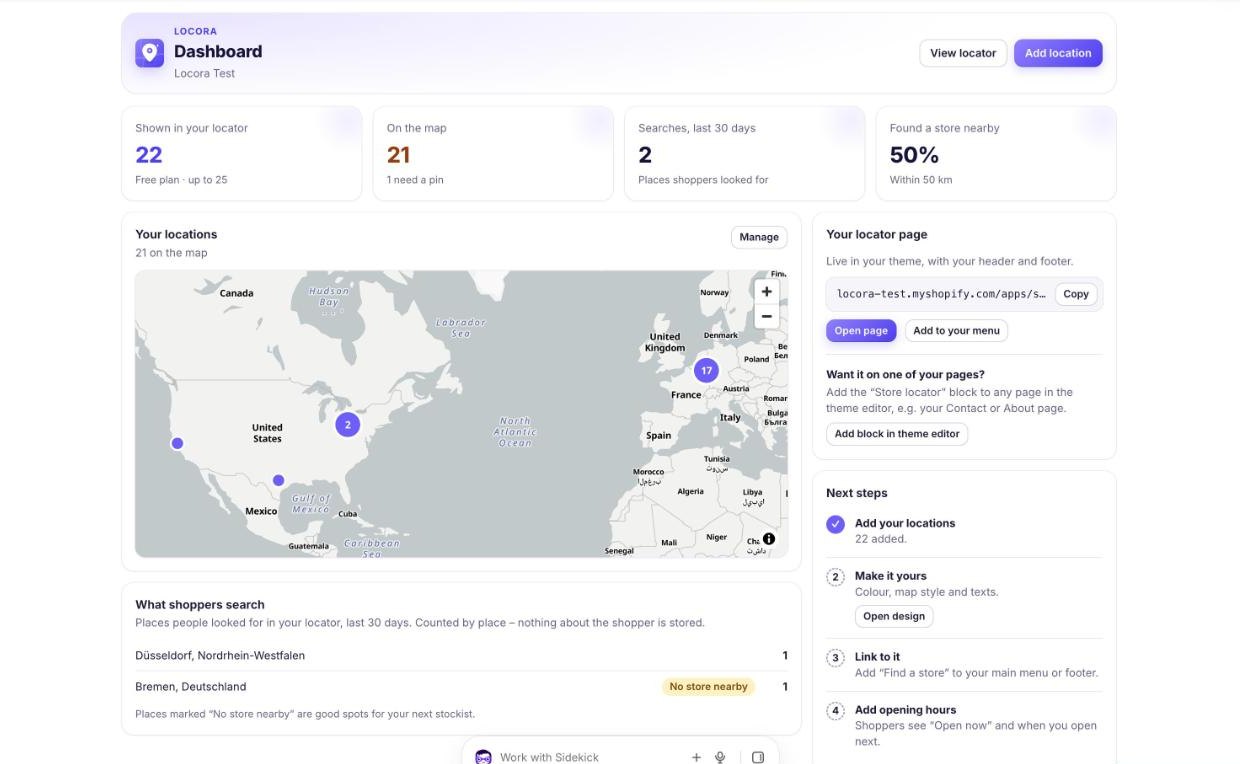
The Dashboard lists the places people searched for in the last 30 days and how many found a store nearby.
Places marked “No store nearby” are good spots for your next stockist. Only the place name is counted, nothing about the shopper.
Plans and billing
Free shows up to 25 locations. Starter $9.99 (300), Growth $19.99 (2,500, priority support), Pro $39.99 (25,000, import help from our team).
Every feature in every plan, on any Shopify plan. Yearly billing gives 2 months free, and paid plans have a 7-day free trial. No fees per view, search or order, and no map bill.
Removing Locora
Uninstall Locora from Apps in your Shopify admin. The locator page and block disappear at once. Nothing in your theme code needs cleaning up.
Contact
Questions or setup help: contact support or write to contact@loolon.com. A real person replies within one business day, and on Pro we import your locations for you.