

Welcome
LooLon 3D Virtual Try-On lets shoppers see your frames on their own face with their phone or computer camera – right on the product page. You don't need 3D files: LooLon turns your normal product photos into try-on frames, and new products get a try-on by themselves.
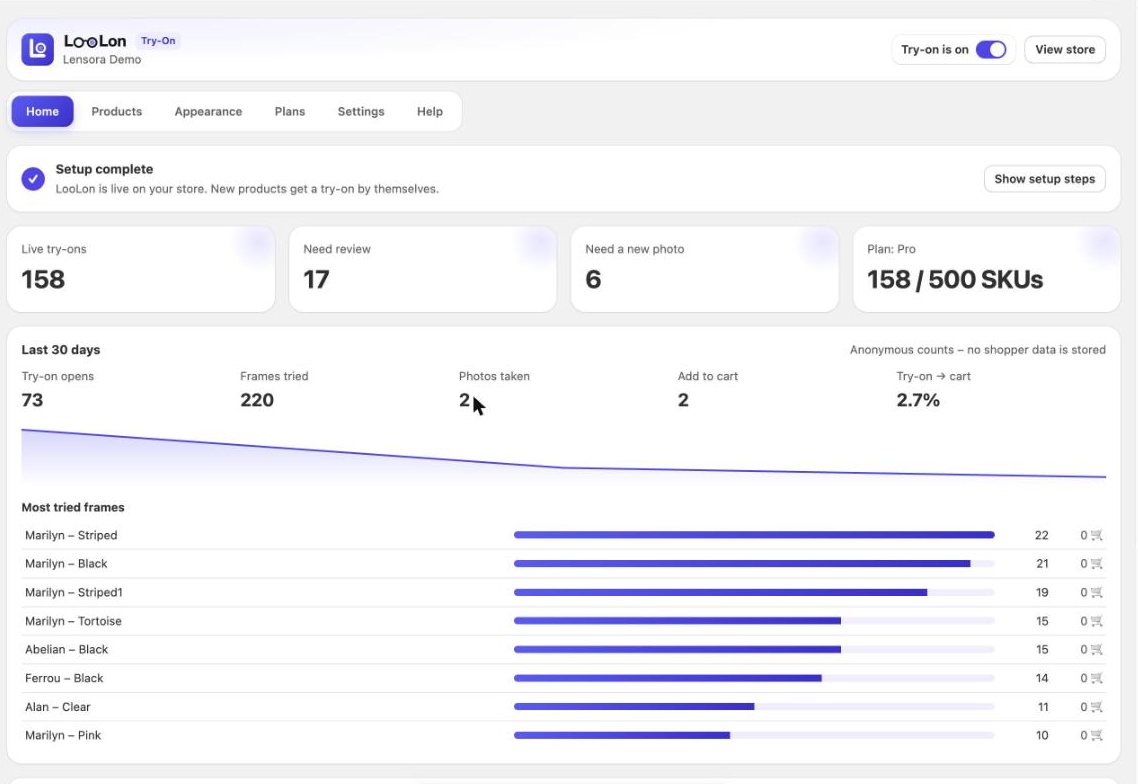
Getting started
- Install LooLon 3D Virtual Try-On from the Shopify App Store and open it from Apps in your Shopify admin.
- Turn on the app embed – on the Home tab click Turn on. It opens your theme editor with LooLon ready; click Save there.
- Let your frames process. LooLon prepares a try-on for every eyewear product. This takes a few minutes per frame; you can close the app meanwhile.
- Check Products. Frames that pass the quality check go live by themselves. Others wait under Need review or Need a new photo.
- Make the button yours in Appearance – label, icon, colours and position.
Turn on the app embed
The try-on button is added to your theme through an app embed, so it works with any Online Store 2.0 theme and needs no code. If you switch themes later, turn the embed on again in the new theme: Online Store → Themes → Customize → App embeds → LooLon Try-on.
Which products get a try-on
LooLon adds the try-on to products whose product type contains “glasses”, “eyewear” or “frame” – for example Eyeglasses or Sunglasses. Set the product type in the product's Category / Type field in Shopify. Each colour (variant) gets its own try-on from its own variant photo.
Products tab
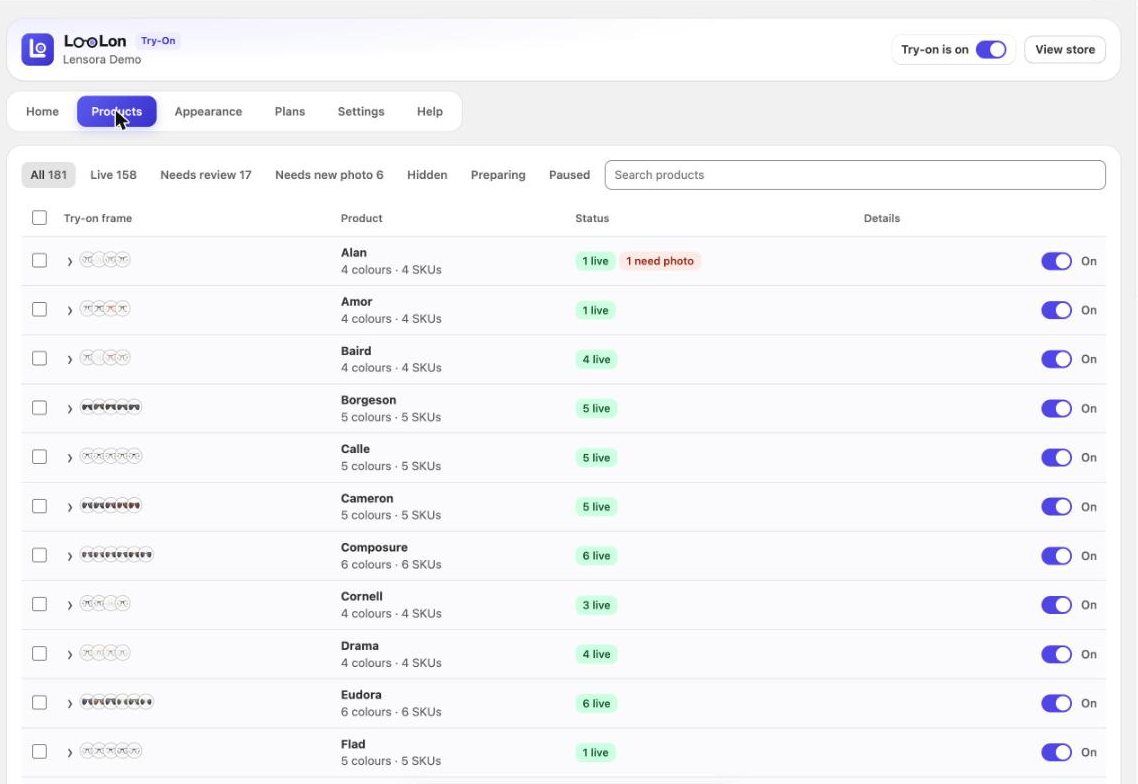
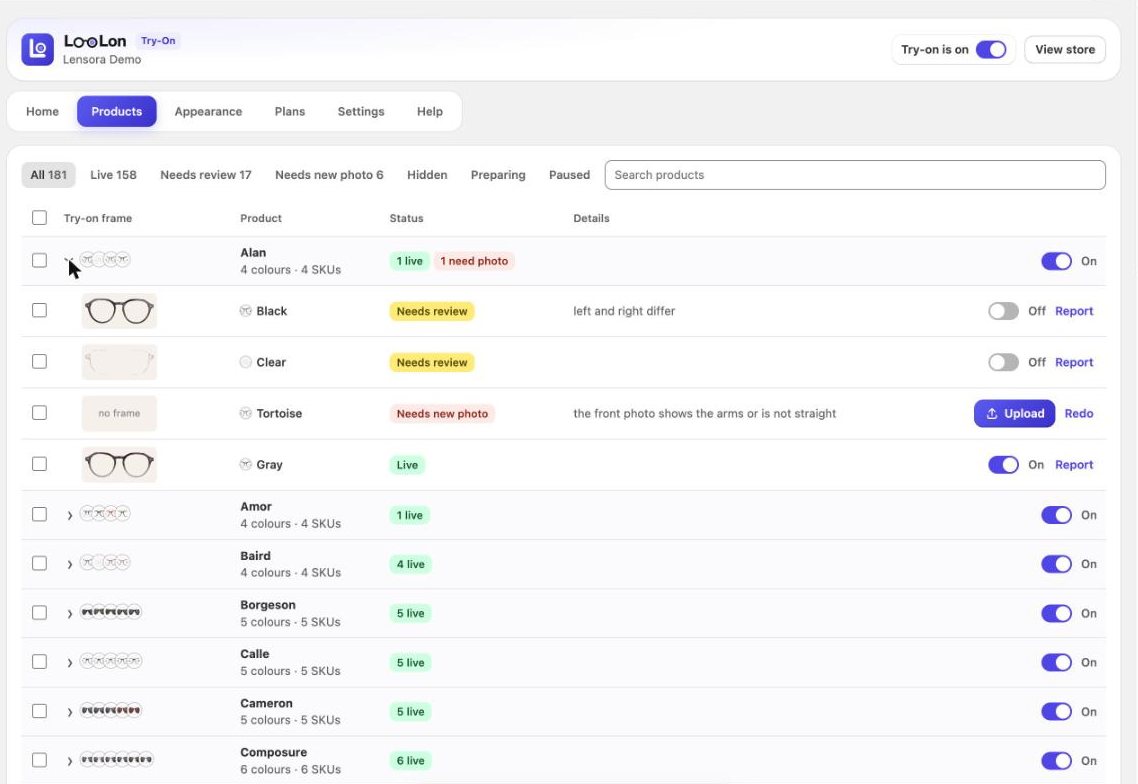
Every frame with its try-on preview, status and details. Use the filter to show only frames that need you, switch the try-on off for a single product, or open a frame to see its photos.
Frame statuses
| Status | What it means | What to do |
|---|---|---|
| Live | The try-on is on your store. | Nothing. |
| Preparing | The frame is being prepared from its photos. | Wait a few minutes. |
| Need review | Ready, but we're not fully sure it looks right. | Open it and approve, or report a problem. |
| Need a new photo | The photo can't give a good try-on (angled, arms showing, frame hard to separate). | Upload a better photo – see the photo guide. |
| Hidden / Paused | You switched the try-on off for this product or colour, or it is hidden while being fixed. | Switch it on again any time. |
Review and approve
Open a frame under Need review, check it in the preview and click Approve. To publish good frames without reviewing, keep Publish new frames automatically on in Settings.
Report a problem
If a live frame looks wrong, open it and click Report a problem. Choose what's wrong – parts cut off, white or rough edges, arms visible, wrong lens colour or wrong size on the face – and send it to the LooLon team, or click Try again automatically. The frame is hidden from your store while it's being fixed.
Photo guide
The try-on is only as good as the front photo. For each colour, upload:
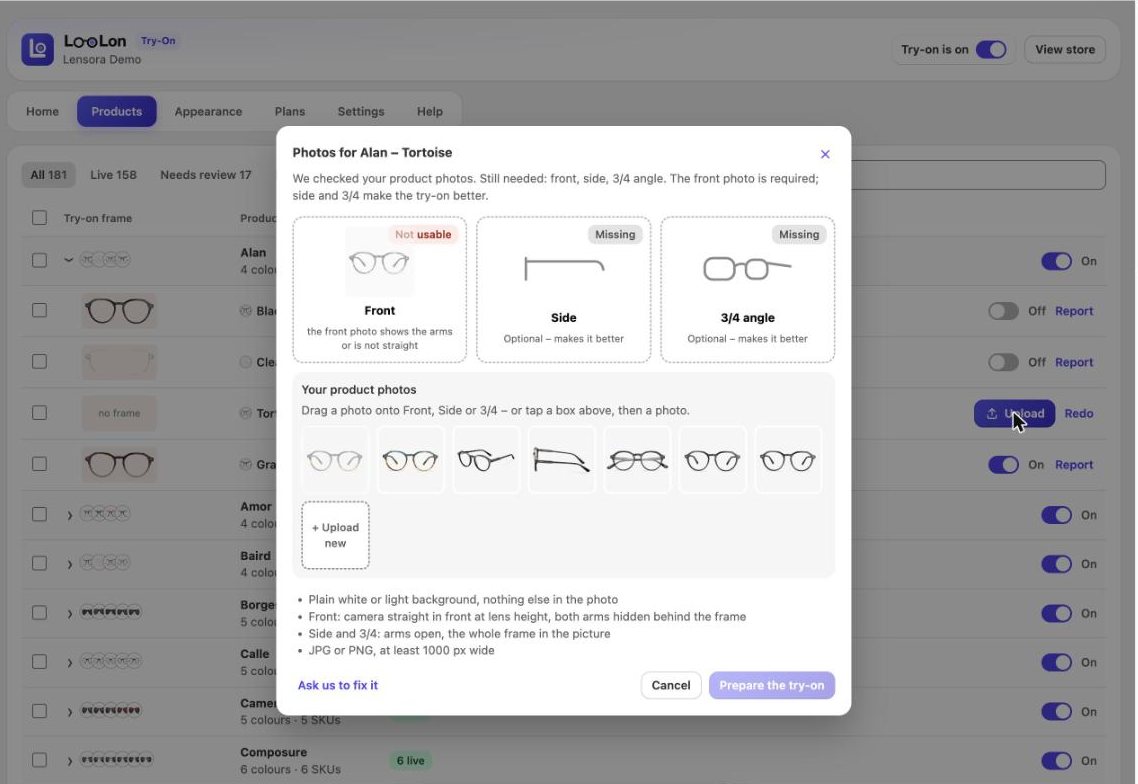
- Front: camera straight in front at lens height, both arms hidden behind the frame.
- Side and 3/4 (optional): arms open, the whole frame in the picture.
- A plain white or light background with nothing else in the photo.
- JPG or PNG, at least 1000 px wide.
To replace a photo, open the frame in Products and click New photos, or change the variant image in Shopify – LooLon notices and prepares the try-on again. If you'd rather not take photos yourself, choose Ask us to fix it.
Appearance
Everything shoppers see. A live preview shows your changes for computer and phone before you save.
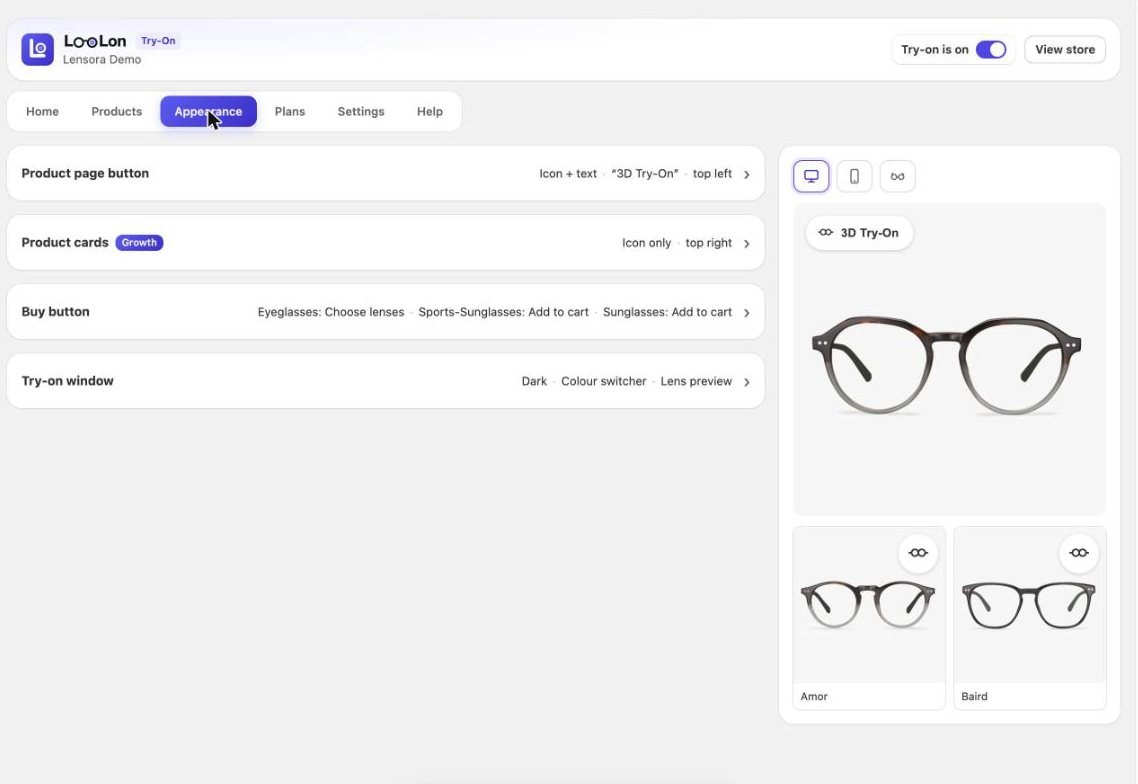
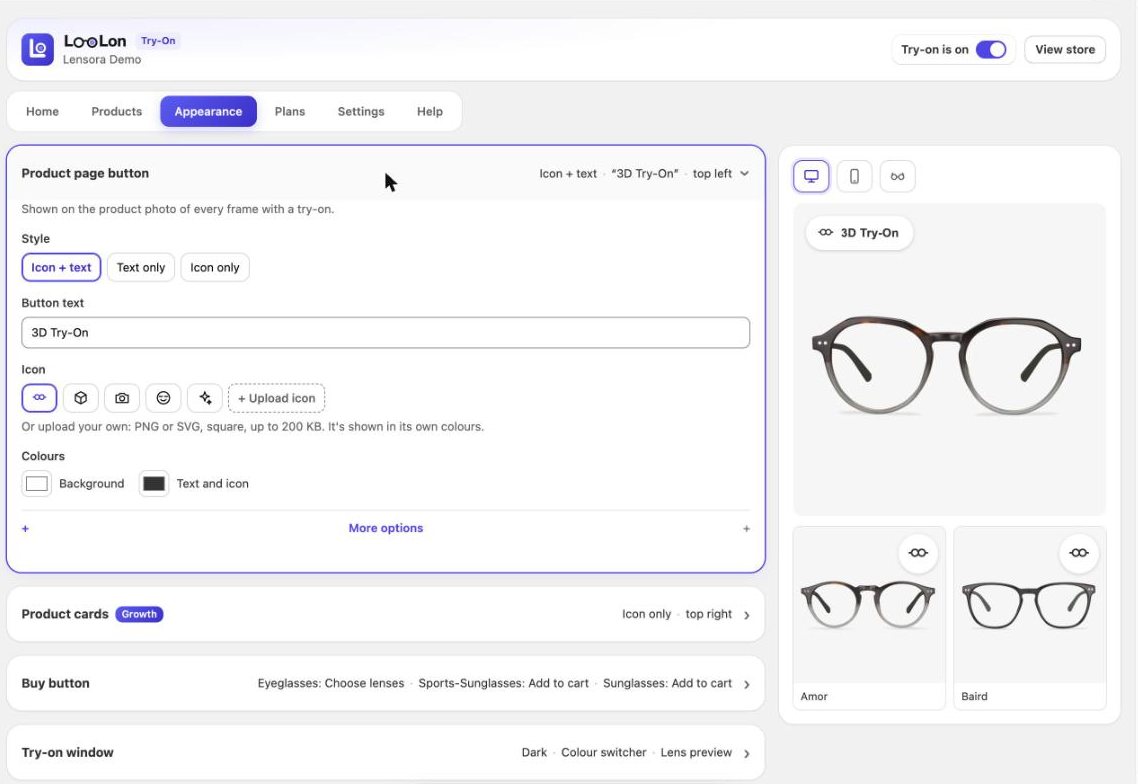
Product page button
Shown on the product photo of every frame with a try-on. Choose the style (icon + text, text only, icon only), the text, an icon – or upload your own (PNG or SVG, square, up to 200 KB) – the colours, shape (round, soft corners, square), size, and the position separately for computers and phones.
Product cards Growth
Adds the try-on button to collection, search and related-product cards. Choose the corner of the card photo, and whether it only appears when a shopper points at the card on a computer.
Buy button
The button at the bottom of the try-on window. Choose what it does for each type of product – Add to cart, or Choose lenses for prescription frames (opens the product page) – its colours, texts and whether it shows the price.
Try-on window
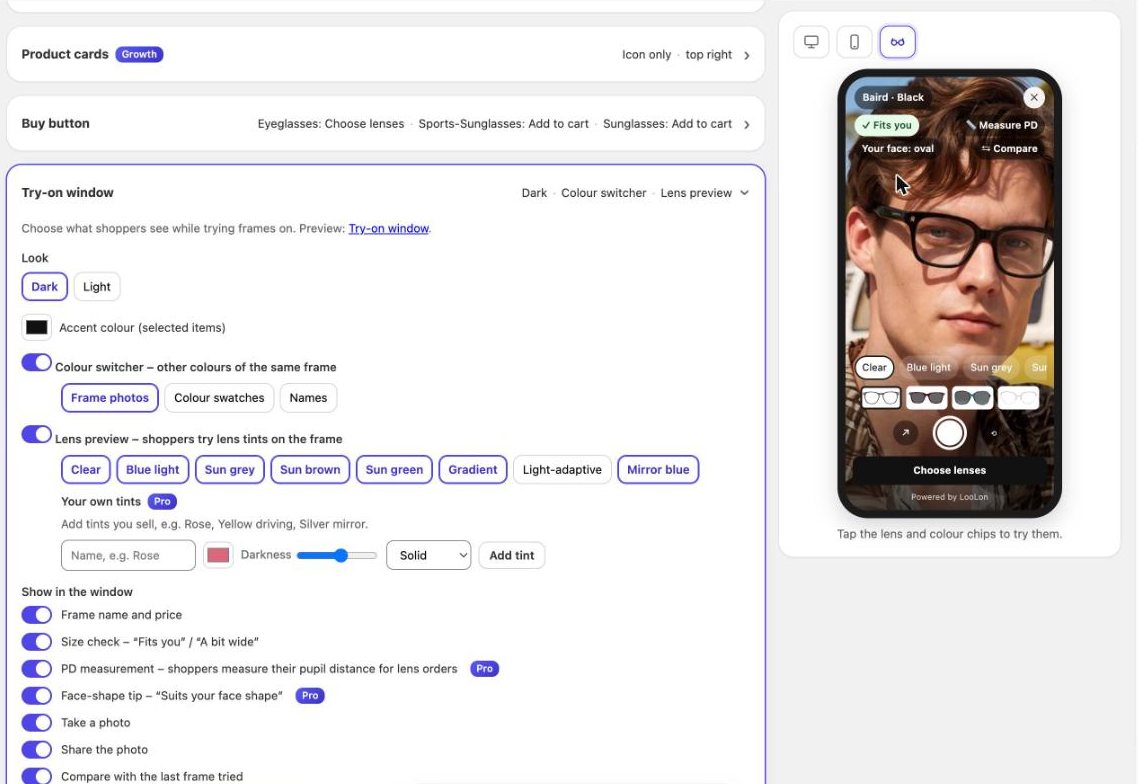
- Dark or light window and an accent colour for selected items.
- Colour switcher – other colours of the same frame as photos, swatches or names.
- Lens preview – shoppers try lens tints on the frame; on Pro, add your own tints (solid, gradient or mirror).
- Frame name and price, size check (“Fits you” / “A bit wide”).
- PD measurement and face-shape tip Pro.
- Take a photo, share and compare with the last frame tried.
- “Powered by LooLon” – the Pro plan can hide it.
Settings
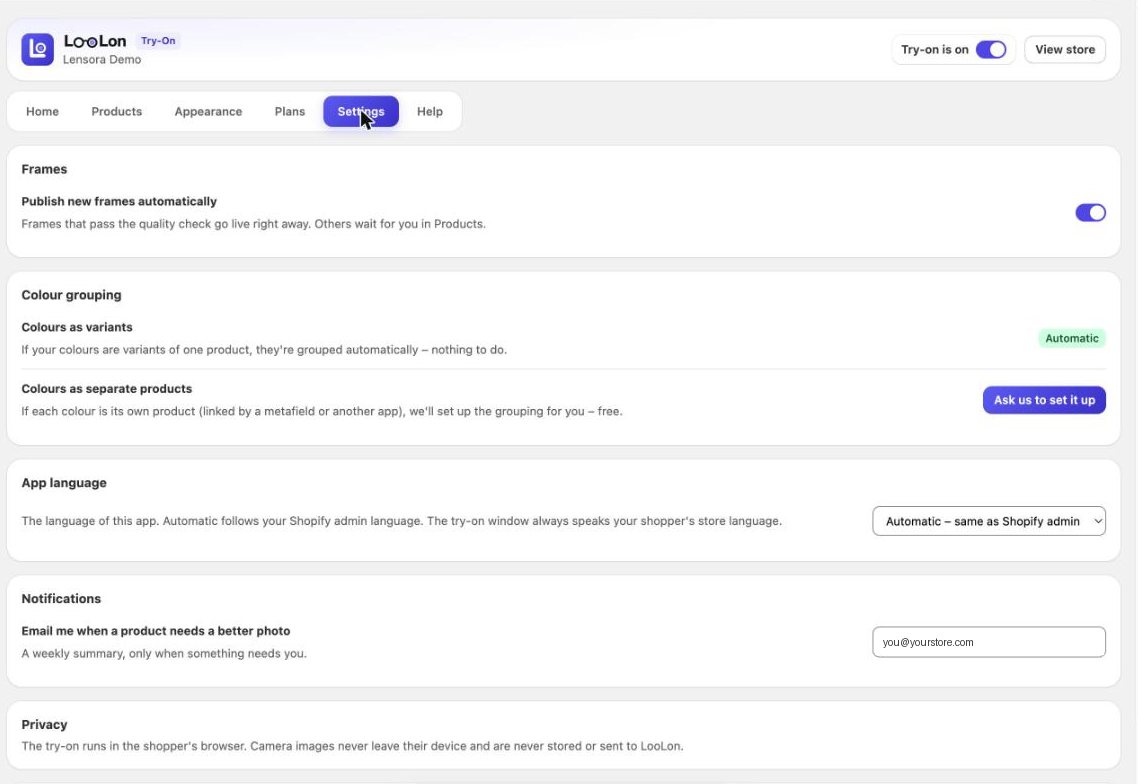
- Publish new frames automatically – frames that pass the quality check go live right away; others wait in Products.
- Colour grouping – if your colours are variants of one product they're grouped automatically. If each colour is its own product, click Ask us to set it up (free).
- App language – the language of the app itself. The try-on window always speaks your shopper's store language.
- Notifications – a weekly email, only when a product needs a better photo.
Plans and billing
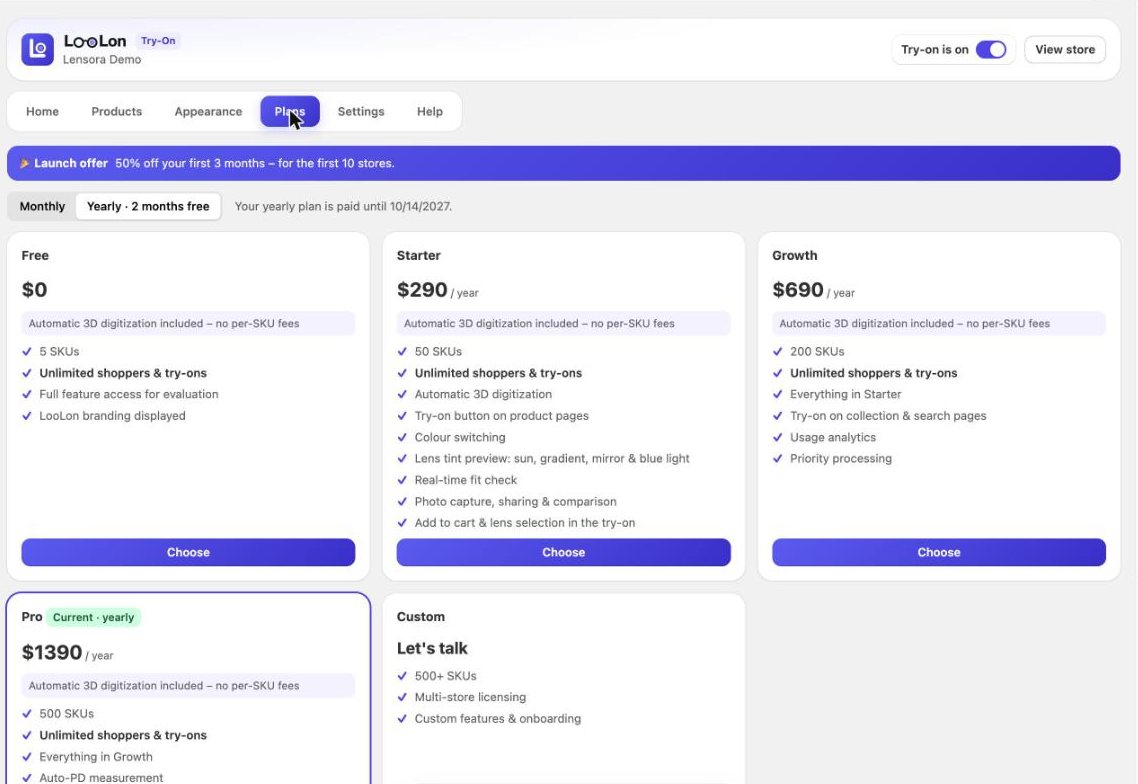
| Plan | Monthly | Frames (SKUs) | Highlights |
|---|---|---|---|
| Free | $0 | 5 | Full features to evaluate, LooLon branding shown. |
| Starter | $29 | 50 | Product page button, colour switching, lens tints, fit check, photo and compare, add to cart / choose lenses. |
| Growth | $69 | 200 | Everything in Starter + try-on on collection and search pages, usage analytics, priority processing. |
| Pro | $139 | 500 | Everything in Growth + PD measurement, face-shape tips, your own lens tints, hide “Powered by LooLon”. |
| Custom | Let’s talk | 500+ SKUs, several stores, custom features and onboarding. | |
All plans include unlimited shoppers and try-ons, automatic frame preparation, colour switching and photo capture. Each colour counts as one SKU; frames that need a new photo don't count.
- Yearly billing gives two months free.
- Billing runs through Shopify – change or cancel any time in the Plans tab.
- Plans are paid in advance and, like Shopify's own plans, are not refundable. After you cancel or downgrade, your plan stays active until the end of the paid period, shown in the Plans tab.
Privacy
The try-on runs in the shopper's browser. Camera images never leave their device and are never stored or sent to LooLon. We only count anonymous events such as try-on opens and add-to-carts to show you the numbers on the Home tab. See the privacy policy.
Troubleshooting
The try-on button doesn't show on my store
Check that (1) the switch at the top of the app is on, (2) the app embed is on and saved in your published theme, (3) the product's type contains “glasses”, “eyewear” or “frame”, and (4) the frame is Live in Products.
A frame looks wrong on the face
Open it in Products → Report a problem, or upload a straighter front photo. The frame is hidden while it's fixed.
A colour is missing in the try-on window
Each colour needs its own variant photo. Add a front photo to that variant in Shopify and it appears by itself.
My product isn't in the Products tab
Set its product type to something like Eyeglasses or Sunglasses. It's picked up within a few minutes.
I changed my theme and the button disappeared
App embeds are per theme. Turn LooLon on in the new theme under Customize → App embeds and save.
Contact
Open the Help tab in the app and send a message – your store, plan and frame list are attached automatically. Or use the contact form and choose LooLon Try-on. We usually answer within one working day.