

Welcome
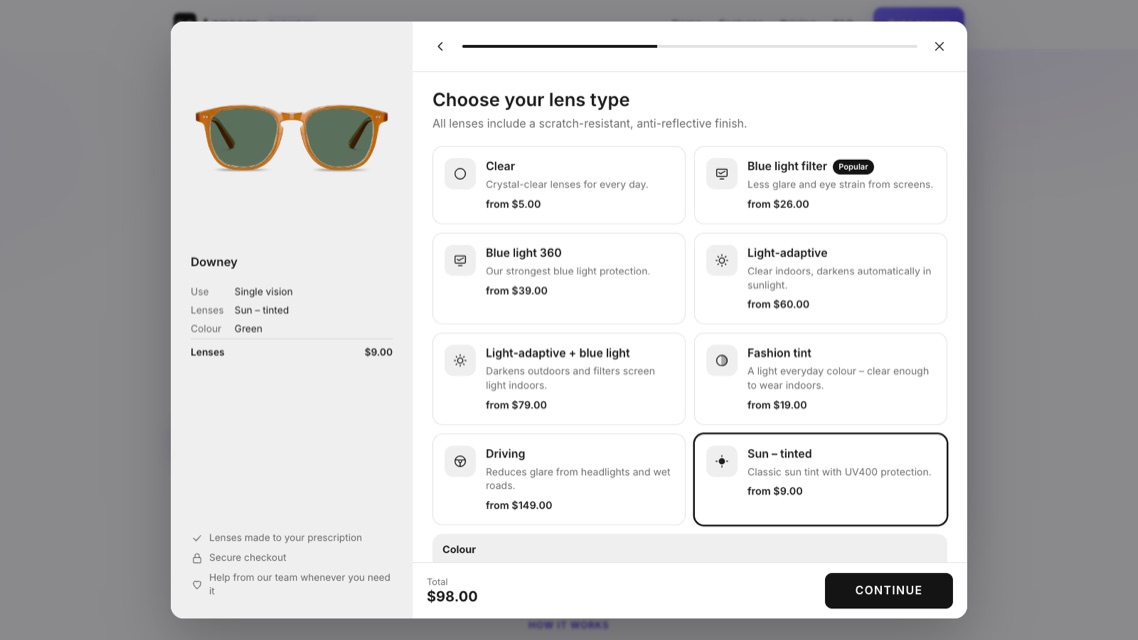
Lensora adds a prescription lens selector to your eyewear product pages. Shoppers choose how they’ll use their glasses, add their prescription, pick lenses and see the lens colour on your own product photo – then frame and lenses go into the cart as one line, priced at checkout by Shopify.
Getting started
- Install Lensora: Prescription Lenses from the Shopify App Store and open it from Apps in your Shopify admin.
- Turn on the app embed – on the Home tab click Turn on. Your theme editor opens with Lensora switched on; click Save there.
- Set your lenses and prices in Lens steps. Lensora starts with a complete set you can rename, re-price or remove.
- Match your store in Design – window, style, colours, cards and fonts.
- Check Products – Lensora is on for eyewear automatically; switch single products off or give them their own lens flow.
Turn on the app embed
The “Select lenses” button is added to your theme through an app embed, so you don’t edit theme code. It appears on product pages and in quick view. If you change or duplicate your theme, turn it on again under Online Store → Themes → Customize → App embeds.
How lens pricing works
On install Lensora creates a hidden product called Prescription lenses and a Shopify cart transform. When a shopper adds glasses, the frame and the lenses become one cart line and the lens price is set by Shopify at checkout – it can’t be changed in the browser. Keep the hidden product: past orders use it.
Lens steps
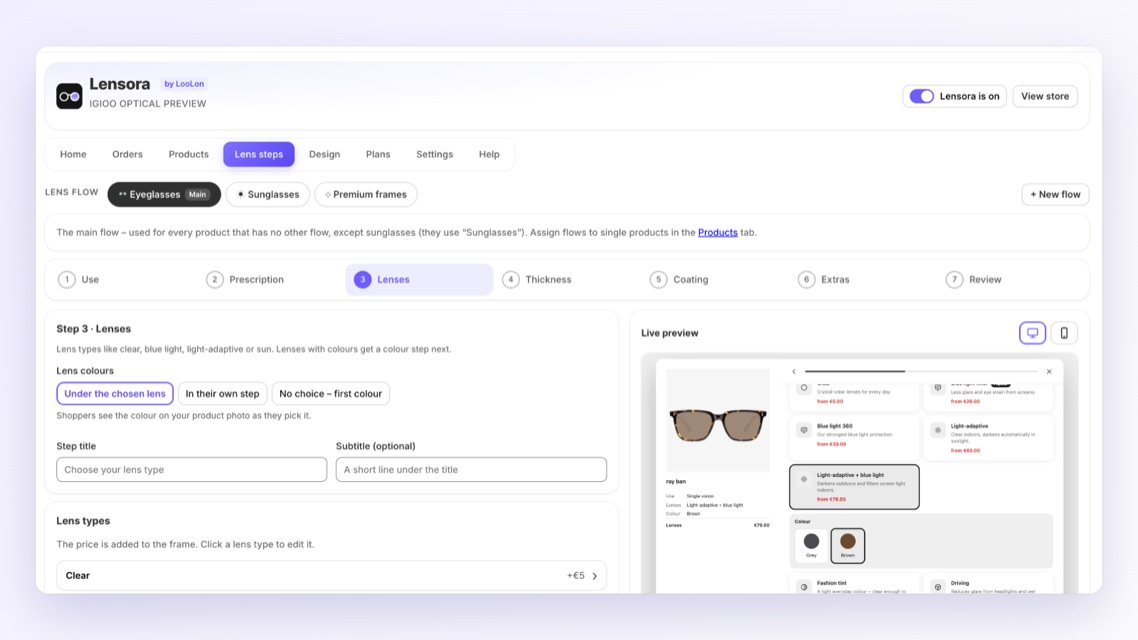
Lens steps holds the whole selector in the order shoppers see it: Use → Prescription → Lenses → Thickness → Coating → Extras → Review. Click a step to edit it; the preview on the right jumps to that step. Steps with nothing to choose are skipped for shoppers.
Lens flows
A flow is a complete set of steps and prices. Every store has a Main flow; add a Sunglasses flow (it offers “Keep the original lenses – included” first, plus upgrades such as polarised) or your own, e.g. for premium frames. Assign flows in Products.
Use
The first step asks what the glasses are for – single vision, progressive, reading, computer, bifocal, readers, non-prescription or frame only. Each option has a type: options with a prescription ask for it in the next step, Readers pick a magnification, and Non-prescription and Frame only skip it.
Prescription
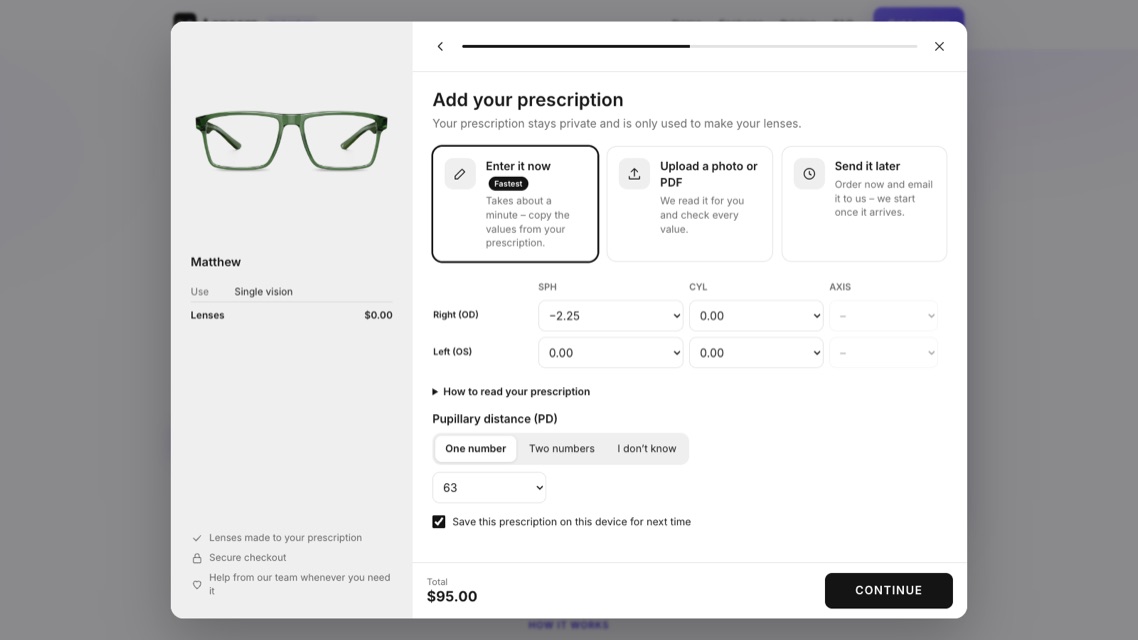
Choose how shoppers can give their prescription: enter it now, upload a photo or PDF, or send it later by email. Set the value ranges for SPH, CYL, AXIS, ADD and PD, and turn on prism, a note field or two PD values if you need them. Signed-in customers can reuse a saved prescription.
Lenses and colours
Lens types such as clear, blue light, light-adaptive and sun tint each have a price that’s added to the frame. Give a lens type colours and shoppers see them on your product photo; choose whether colours appear under the lens or as their own step. A different price without prescription is optional.
Thickness, coating and extras
- Thickness – only for prescription lenses. “Recommended up to (±)” marks the best index for the shopper’s strongest value, e.g. 4 for ±4.00.
- Coating – with only one coating, shoppers skip this step and get it pre-selected.
- Extras – optional add-ons shoppers can tick, such as anti-fog. Remove all to skip the step.
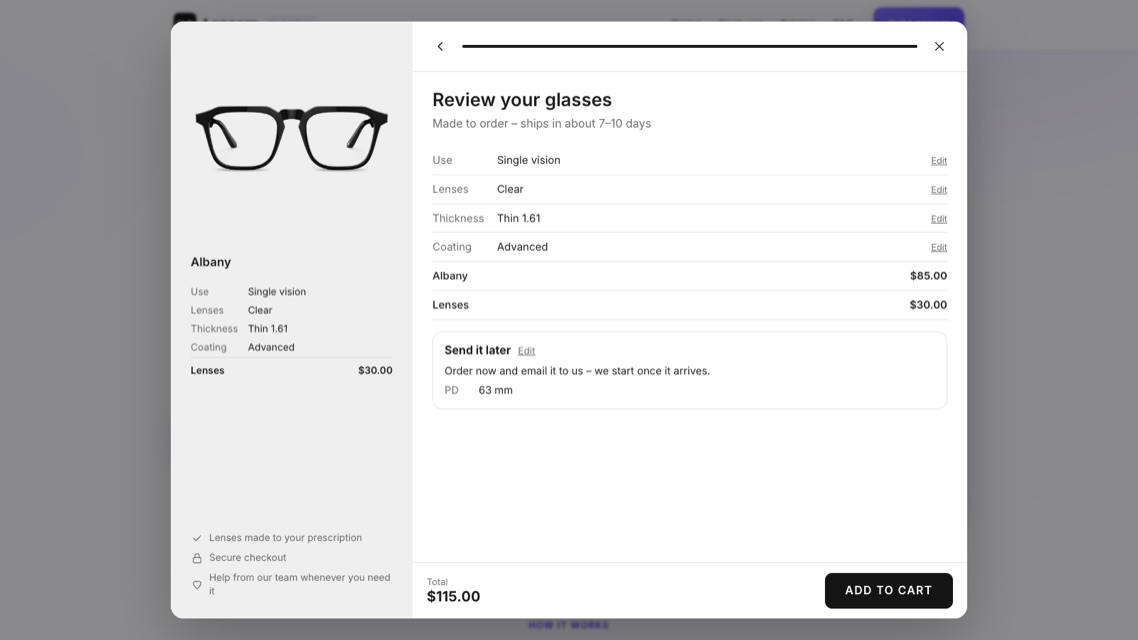
- Review – a summary before Add to cart, with your delivery notes and trust points.
Design
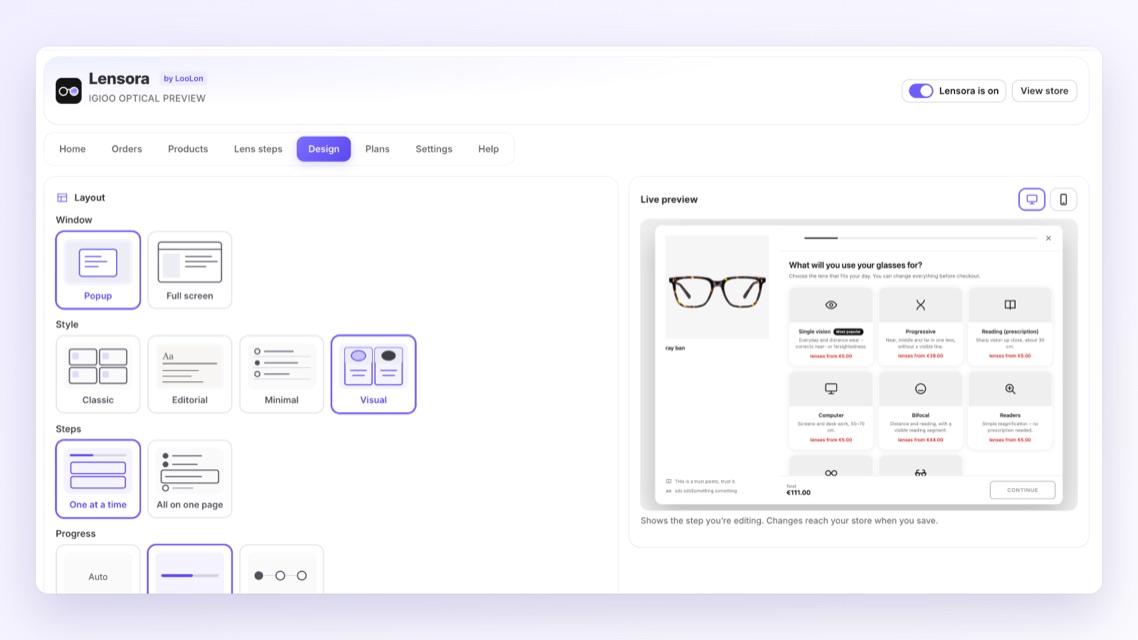
Choose the window (popup or full screen), one of four styles (Classic, Editorial, Minimal, Visual), steps one at a time or all on one page, the progress bar, card style and corners, icons, colours, fonts and the button text on the product page. “Same as my theme” uses your theme’s colours.
Products
Lensora shows on products that look like eyewear – matched against the product title, type and tags (you can edit the eyewear words). Lenses, cases and other products are switched off automatically. Turn single products on or off, and set the lens flow per product.
Lens area
Lensora finds the lenses on a straight front photo by itself. For rimless frames or unusual photos, open Products → Lens area: drag the points onto the lens edges, double-click an edge to add a point, and copy or mirror the shape to the other lens. Pick which product photo the colour preview uses.
Orders
Every order with Lensora lenses, newest first. Open an order to see the frame, lenses, the prescription table (OD right, OS left), PD, prism and notes, the order total and the Lensora fee. Lab sheet prints the order for your lab or saves it as a PDF; Export CSV downloads all lens orders. Home also lists abandoned checkouts with lenses so you can send shoppers their link.
Settings
- App language – the language of the Lensora admin. “Same as my Shopify admin” follows your Shopify language.
- Shopper language – the selector speaks English, German, French, Spanish, Italian, Dutch, Chinese (Simplified and Traditional), Japanese and Korean, and follows your store’s language by default.
- Texts – change any wording shoppers see, per language. Step titles and option names are set in Lens steps.
- After “Add to cart” – go to the cart page, open the cart drawer or stay on the product.
- Currency – you enter prices in your store currency; Shopify Markets converts them for shoppers at the same rate as your frames.
Plans and billing
| Plan | Monthly | Commission | Highlights |
|---|---|---|---|
| Pay as you go | $0 | 5.99% | All features, “Powered by Lensora” shown. |
| Starter | $25 | 4.99% | No Lensora branding, 14-day free trial. |
| Growth | $79 | 3.99% | Priority support. |
| Pro | $159 | 2.99% | Lowest commission, 1-on-1 setup with our team. |
Every plan includes every feature. The commission applies only to orders placed with Lensora lenses – the frame and lenses of those lines, after discounts, without shipping and tax. Cancelled and refunded orders aren’t charged, and there’s no per-order fee.
- Yearly billing gives two months free: Shopify asks you to approve the yearly fee and then the commission.
- Billing runs through Shopify in USD – change or cancel any time in the Plans tab.
- The Orders tab shows the fee charged on each order.
Privacy
Prescriptions stay in Shopify: on the order line, with uploaded files on Shopify’s file storage, and – if the shopper saves them – on their customer account. Lensora doesn’t keep shopper data on its own servers. Read the privacy policy.
Troubleshooting
“Select lenses” doesn’t show on my store
Turn on the app embed (Home → Turn on → Save) in your published theme, and check the product is switched on in Products. Lensora shows only on products that look like eyewear.
The lens colour is in the wrong place
Use a straight front photo, or open Products → Lens area and drag the points onto the lens edges.
Two “Select lenses” buttons appear
Some themes have a second product form (for example for payment installments). Contact us with the product link and we adjust it for your theme.
The lens price is missing at checkout
Don’t delete or rename the hidden “Prescription lenses” product. If it was removed, open Lensora once – it is created again.
I changed my theme and the button disappeared
App embeds are per theme. Turn Lensora on in the new theme under Customize → App embeds and save.
Contact
Open the Help tab in Lensora and send us a message, or use the contact form and choose Lensora. We usually answer within one working day.