

Welcome
Keepora adds Subscribe & save to your product pages and runs every renewal for you. Subscriptions are native Shopify subscriptions: customers check out as usual, Shopify saves the card securely, and Keepora takes care of the orders after that.
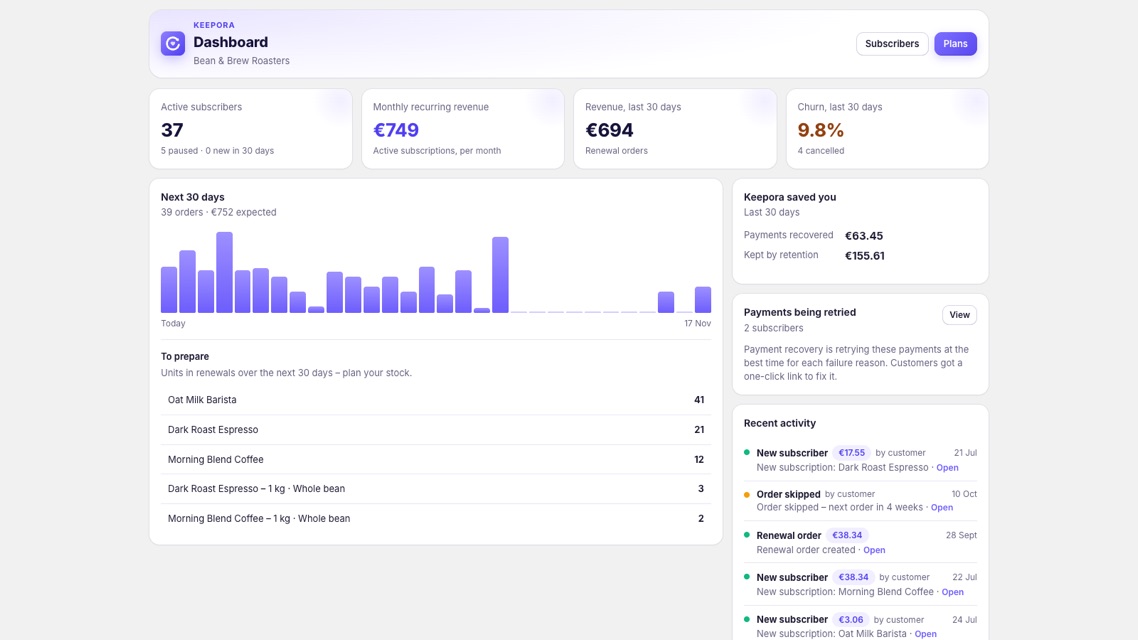
Getting started
- Install Keepora: Subscriptions from the Shopify App Store and open it from Apps in your Shopify admin.
- Check your payment provider. Subscriptions need Shopify Payments, PayPal Express or another gateway Shopify supports for subscriptions. The setup checklist links to Settings → Payments if one is missing.
- Create a plan in Plans: pick a preset, then choose products, frequencies and a discount.
- Add the widget: on the Dashboard click Add to theme, then save in the theme editor.
- Review your emails and portal in Settings.
Subscription plans
A plan sets which products customers can subscribe to, and on what terms. Start from a preset; you can change everything afterwards. The live preview shows what shoppers will see.
- Products – the products this plan applies to.
- Name and discount – the name shoppers see, the frequencies and the subscriber discount.
- Loyalty price ladder – a bigger discount after a set number of orders. Customers see it on the product page.
- Delivery and commitment – delivery rules, minimum orders before cancelling, and prepaid options.
- Perks – short benefits shown under the subscribe option.
Widget
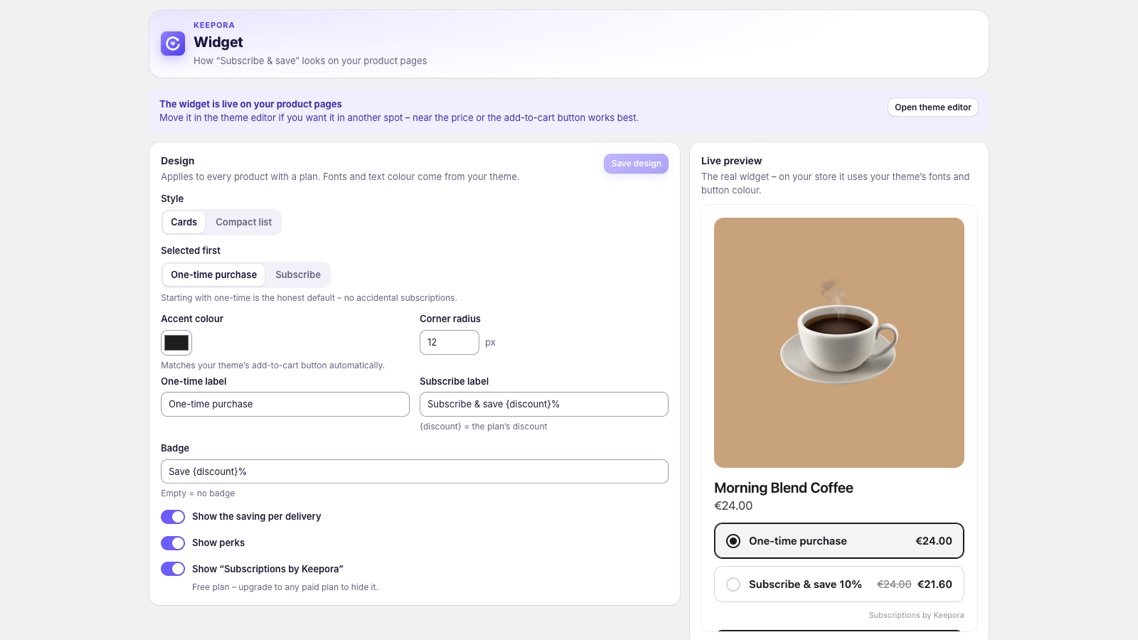
The widget offers one-time purchase or Subscribe & save on every product with a plan. Choose the accent colour, corner radius, labels and badge, and whether to show the saving per delivery and your perks. Fonts and text colour come from your theme.
Subscribers
Search all your subscribers and open one to see their subscription, upcoming orders and a timeline of what has happened. Use it to make changes for a customer who contacts you.
Customer portal and emails
Customers manage their subscription at your-store.com/apps/keepora/portal, or straight from email buttons with no login. Under Settings you choose what they can do: skip an order, change the date, pause for 1–3 months, change frequency, swap products, change quantity, add one-time products and cancel online. The portal, emails and widget are available in English, German, French, Spanish, Italian and Dutch.
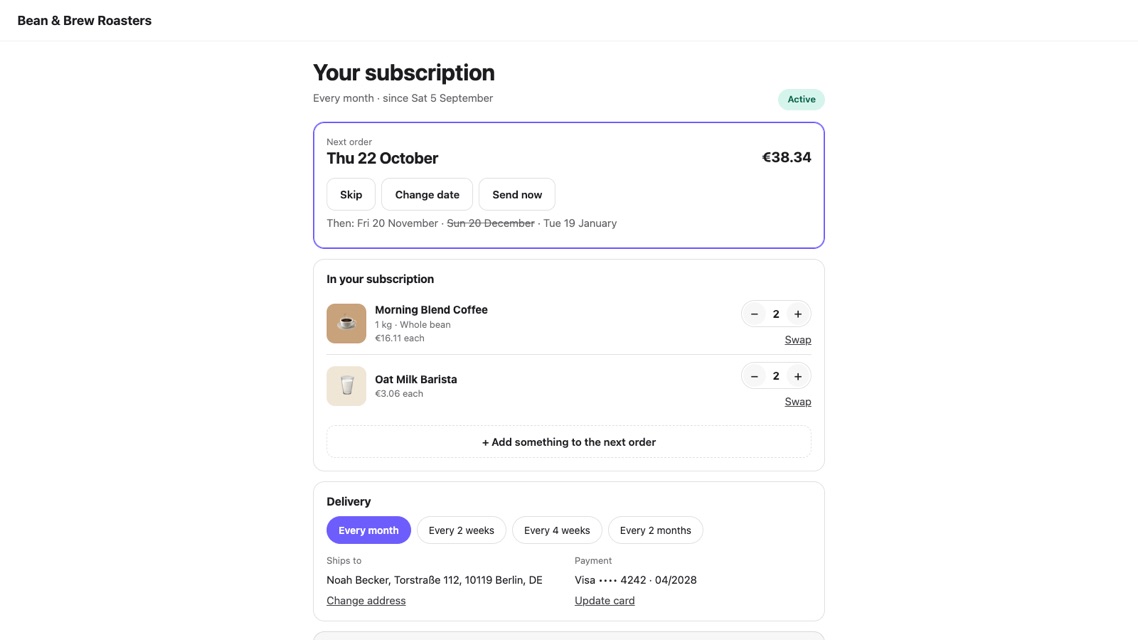
Keepora sends these emails in your store’s name, and replies go to you. Each one can be switched off and previewed in Settings:
- Welcome – right after someone subscribes.
- Upcoming order – 1 to 14 days before each order, with Skip, Delay and Send now buttons.
- Payment problem and Card expiring – with the right fix for the customer.
- Order skipped, Paused, Resumed, Cancelled – confirmations.
- Out of stock – when a product in the next order is out of stock.
Payment recovery
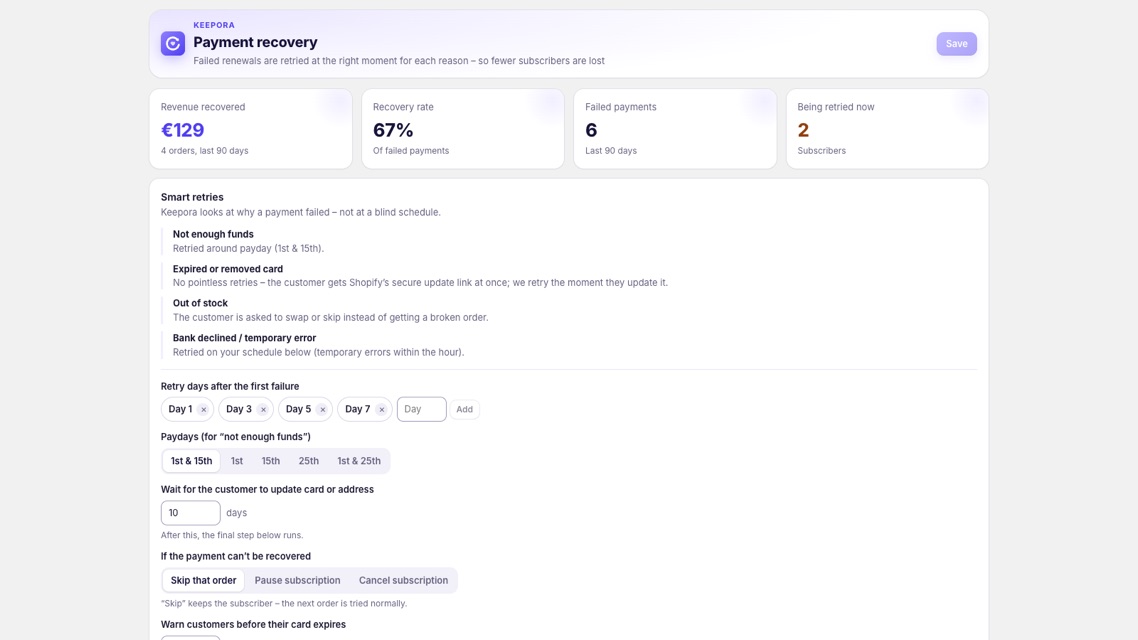
When a renewal fails, Keepora looks at the reason instead of following a blind schedule:
- Not enough funds – retried around the paydays you choose.
- Expired or removed card – the customer gets Shopify’s secure update link at once, and Keepora retries when they update it.
- Out of stock – the customer is asked to swap or skip.
- Bank declined or temporary error – retried on your schedule; temporary errors within the hour.
You also set how long to wait for the customer, what happens if the payment can’t be recovered, and whether to warn customers before their card expires.
Retention
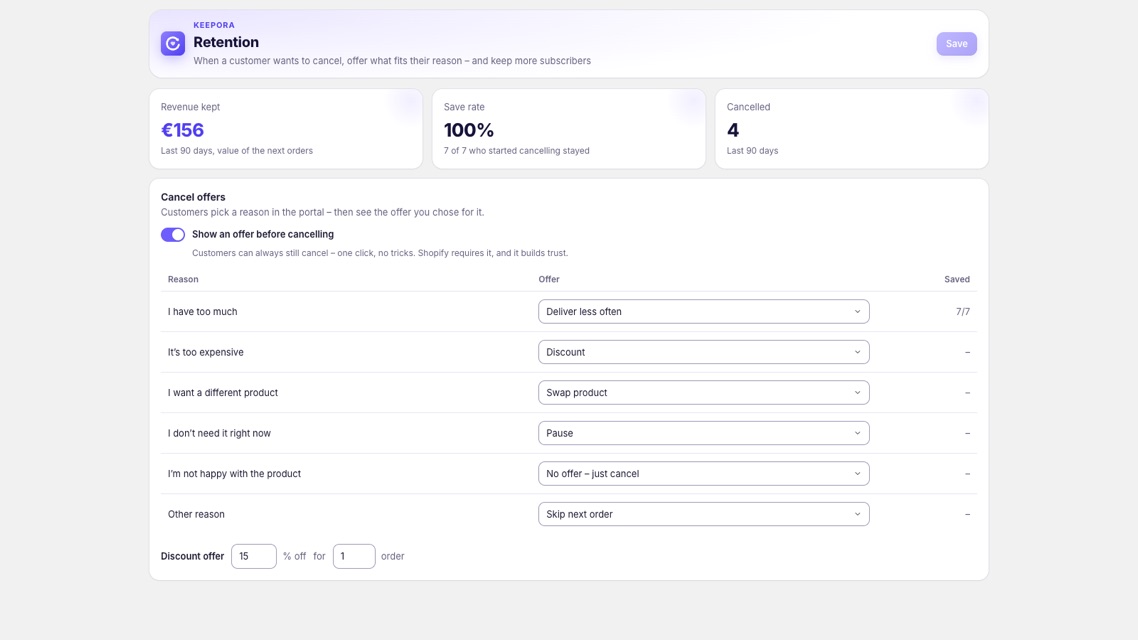
When a customer wants to cancel, they pick a reason in the portal and see the offer you chose for it, such as skip, pause, a discount, a swap or a slower rhythm. Cancelling always stays one click away. The page shows revenue kept, save rate and cancellations.
Settings
Settings holds your customer emails, brand (colour, logo, sender name and reply-to address), customer portal options, subscriber import and order merging.
Order merging
When a customer has two subscriptions due within a few days, Keepora ships them together on the earlier date. You set the window, from 1 to 10 days.
Import subscribers
Move from Recharge, Seal, Appstle or Shopify Subscriptions: upload a CSV with one row per subscription product. A dry run shows every subscription and any problem before anything is created. Next order dates, rhythms, products, quantities and prices are kept, and customers keep the card saved in Shopify. On Growth and above we can do the move for you.
Shopify Flow
Keepora adds Flow triggers for a subscription being created, renewed, paused, cancelled or saved, and for a failed payment. Use them to tag customers, notify your team or start your own automations.
Keepora pricing
| Plan | Monthly | Includes |
|---|---|---|
| Free | $0 | First 100 subscription orders in total, all features, “Subscriptions by Keepora” in the widget. |
| Growth | $49 | Up to 2,500 active subscribers, no branding, migration help. |
| Pro | $99 | Up to 10,000 active subscribers, priority support, white-label emails. |
| Plus | $199 | Unlimited subscribers, done-for-you migration, priority support and white-label. |
- There are no transaction fees on any plan. Your payment provider’s normal fees still apply.
- Paid plans start with a 14-day free trial. Yearly billing costs 10 months.
- After 100 orders on Free, existing renewals keep running, but the widget stops offering new subscriptions until you upgrade.
- Billing runs through Shopify in USD. Change or cancel your plan on the Billing page.
Troubleshooting
The subscribe widget doesn’t show
Check that the product is in a plan, and that the Keepora block is on your product template in your published theme (Dashboard → Add to theme → Save). On Free, the widget also hides once the first 100 subscription orders are used.
The checklist says my store can’t sell subscriptions
Turn on Shopify Payments, PayPal Express or another gateway Shopify supports for subscriptions under Settings → Payments.
I changed my theme and the widget disappeared
Add the Keepora block to the product template of the new theme and save.
A customer isn’t getting the emails
Check that the email is switched on in Settings, and ask the customer to check their spam folder. If that doesn’t help, contact us with the subscriber’s order number.
Contact
Open the Support page in Keepora and send us a message, or use the contact form and choose Keepora. We usually answer within one working day.